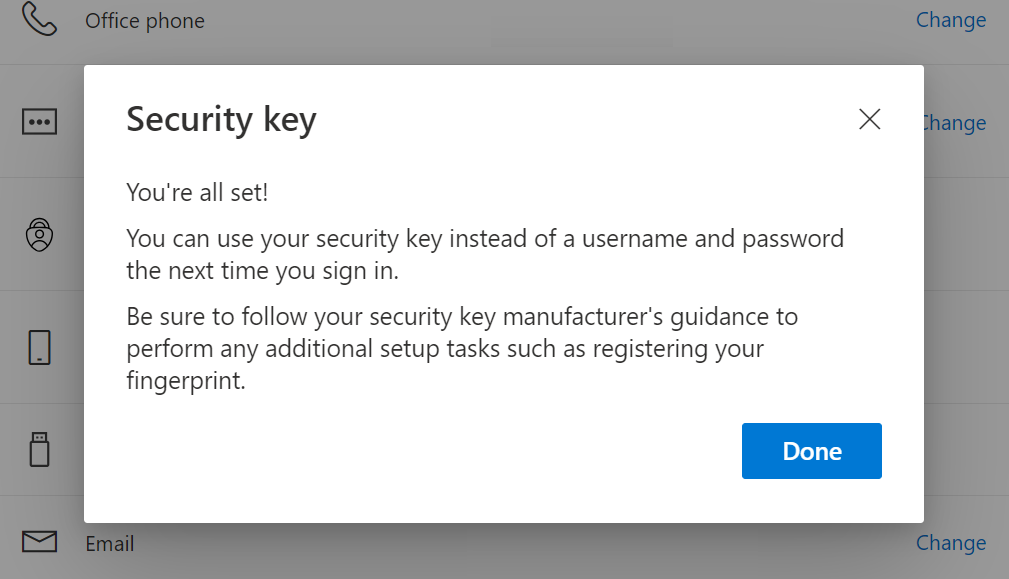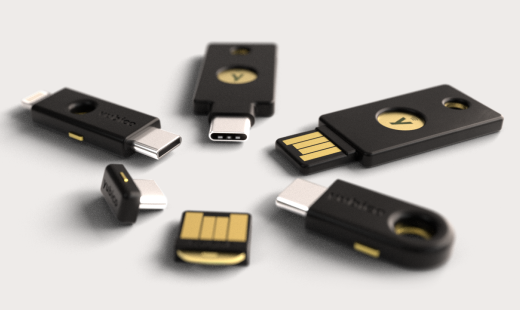
Follow these instructions to link a YubiKey security token to your account, which allows you to sign in on Microsoft Online Services such as Microsoft 365 and Office, but also on managed Windows computers.
1: Go to the following website on a computer that is allowed to connect to company resources: https://mysignins.microsoft.com/security-info
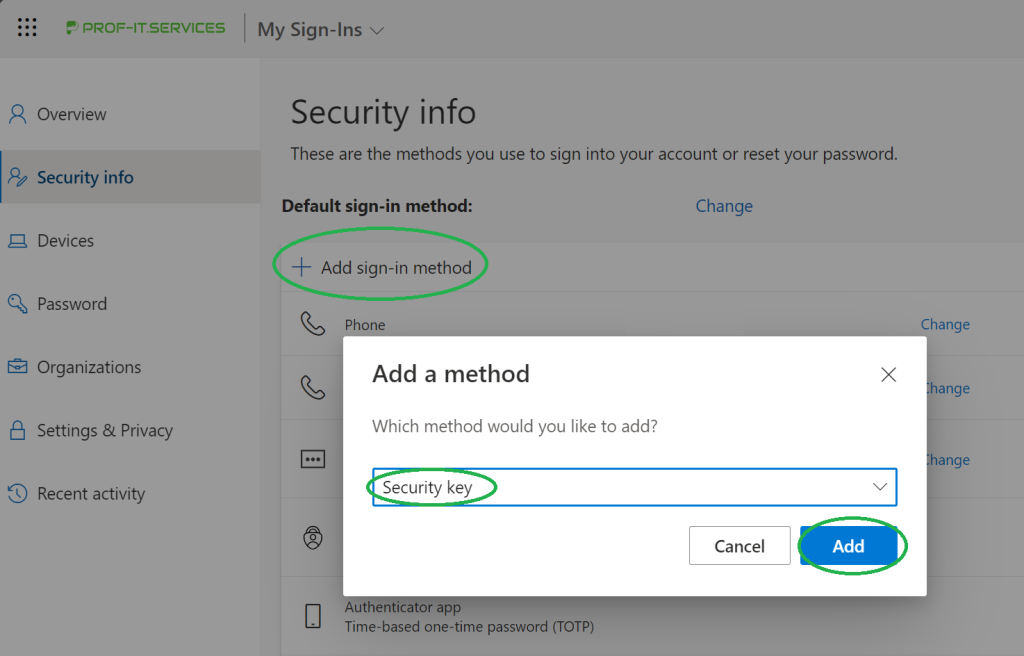
2: Click on “Add sign-in method”, followed by selecting “Security Key”, and press “Add”.
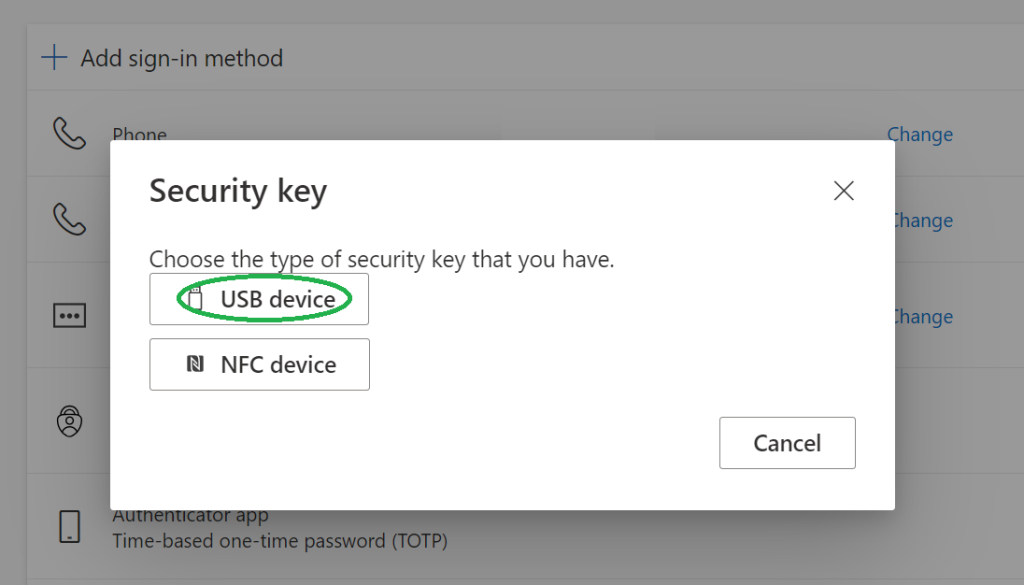
3: In the next screen it will request the YubiKey type, easiest is to set-up with USB YubiKey.
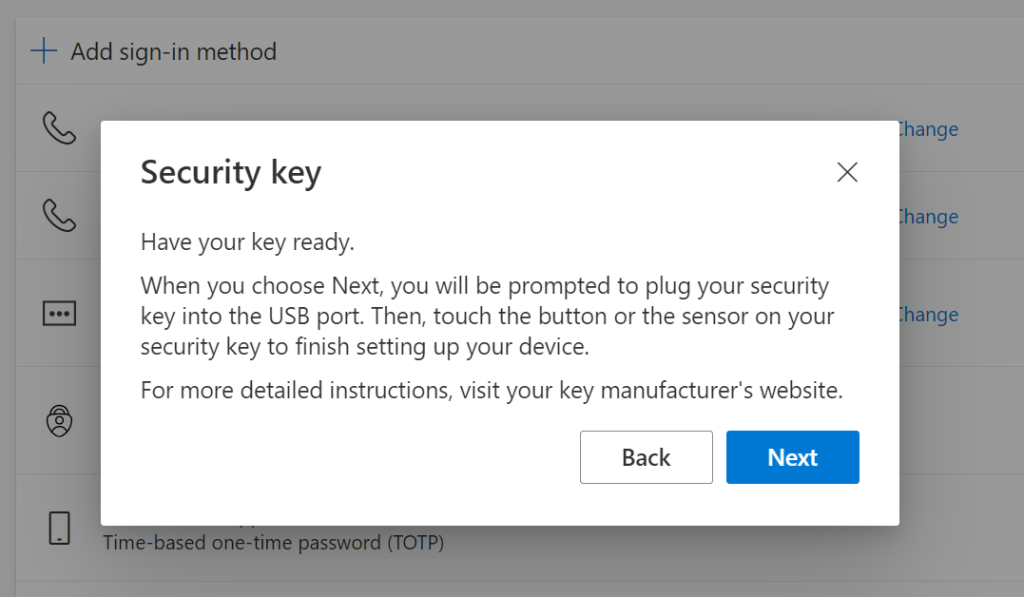
4: Insert the USB YubiKey, and click Next.
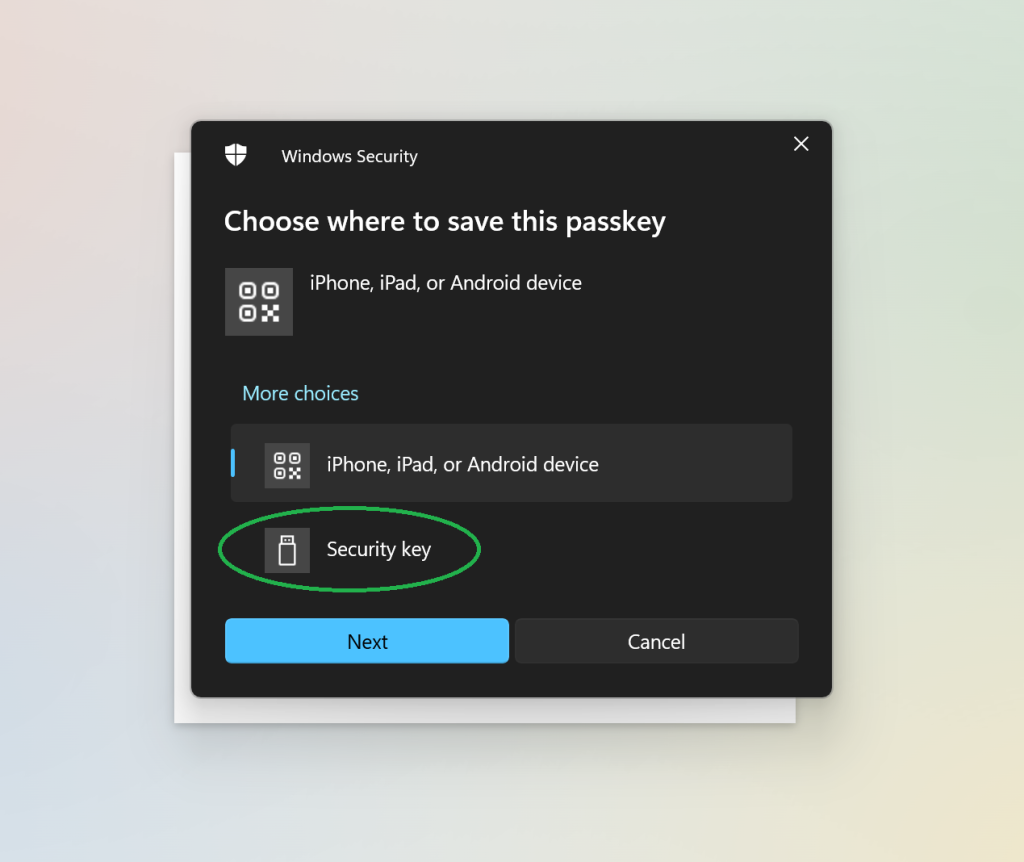
5: The browser will redirect to a different page. Click Security key, followed by Next.
5: The browser will redirect to a different page. Click Security key, followed by Next.
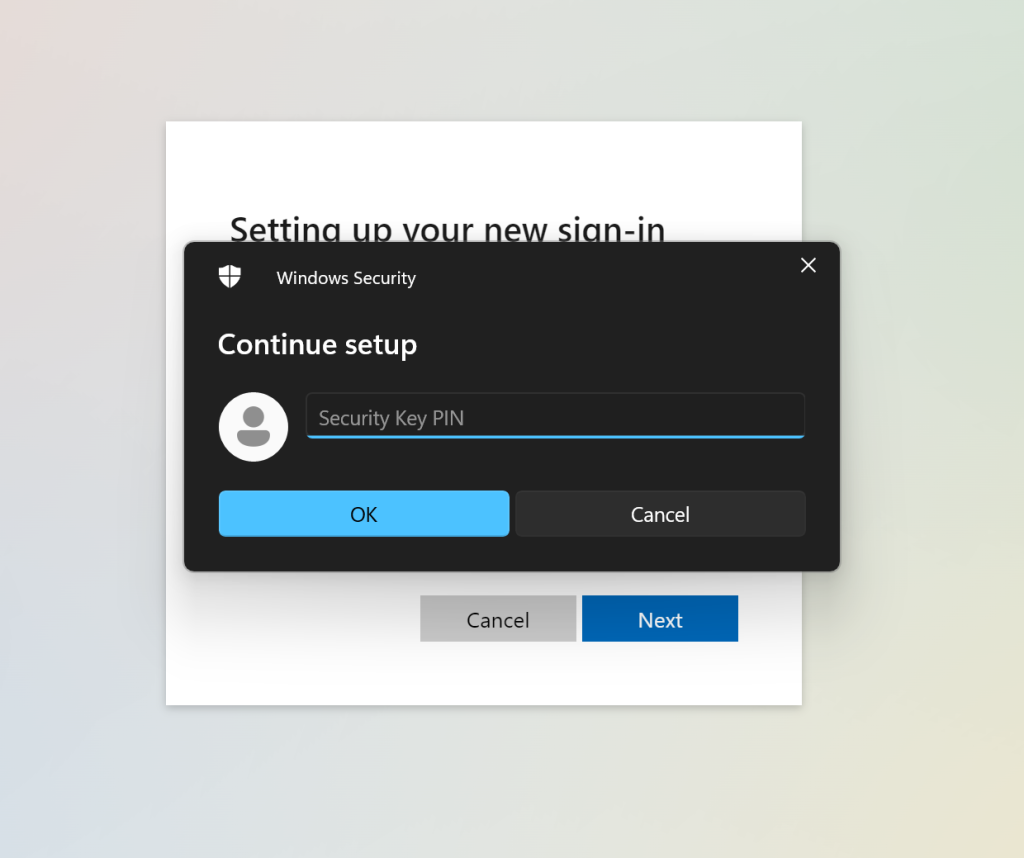
7: Enter a pin code that you will need to enter when you sign in, followed by touching the YubiKey. This PIN code only applies to the YubiKey and is not transmitted to Microsoft or anywhere else.
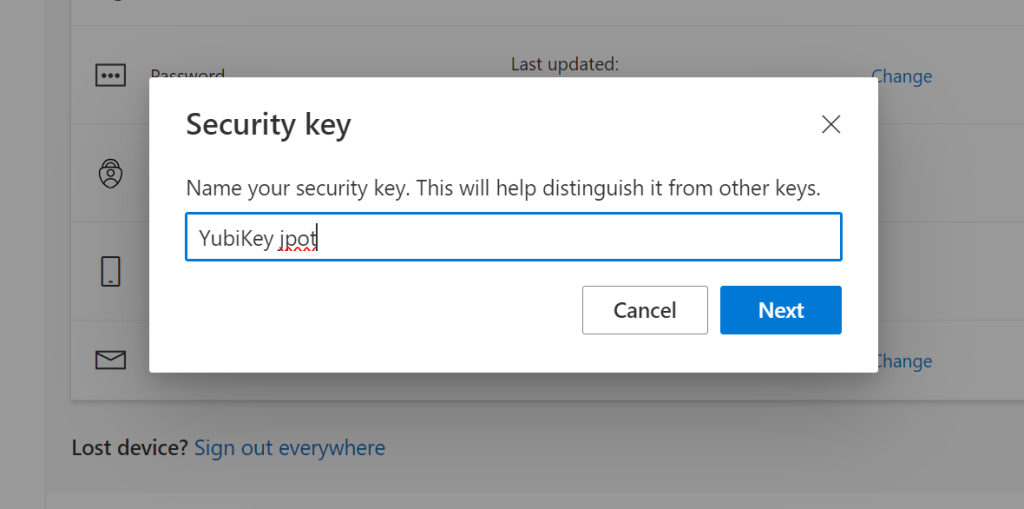
8: And finally, give the YubiKey a name.